How to Optimize Graphics Settings for Maximum FPS in Popular Steam Games
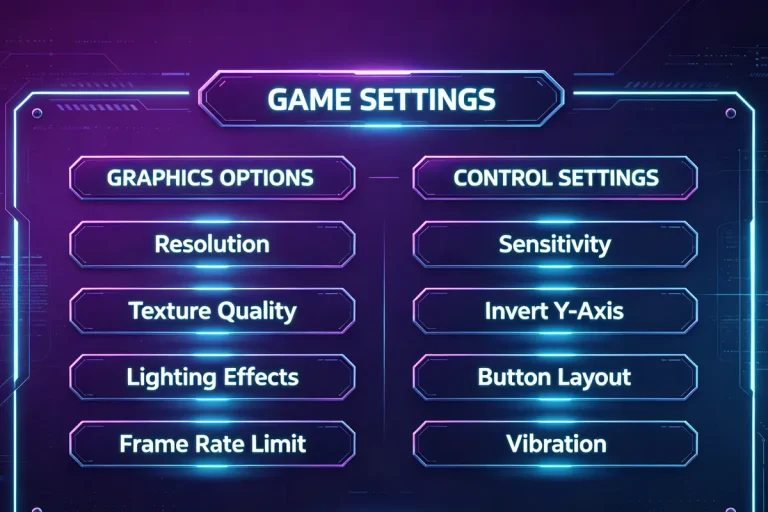
Want higher FPS without buying new hardware? The key is adjusting graphics settings like resolution, texture quality, and shadow detail. Start by setting your game to a lower preset (e.g., Medium), then tweak individual options: disable V-Sync, reduce shadows to Low, and turn off motion blur. For most Steam games, lowering Anti-Aliasing and Post-Processing yields the biggest FPS gains. Always prioritize Resolution Scale over full resolution if you need a boost. This guide covers exact settings for top Steam titles, from *Counter-Strike 2* to *Elden Ring*.
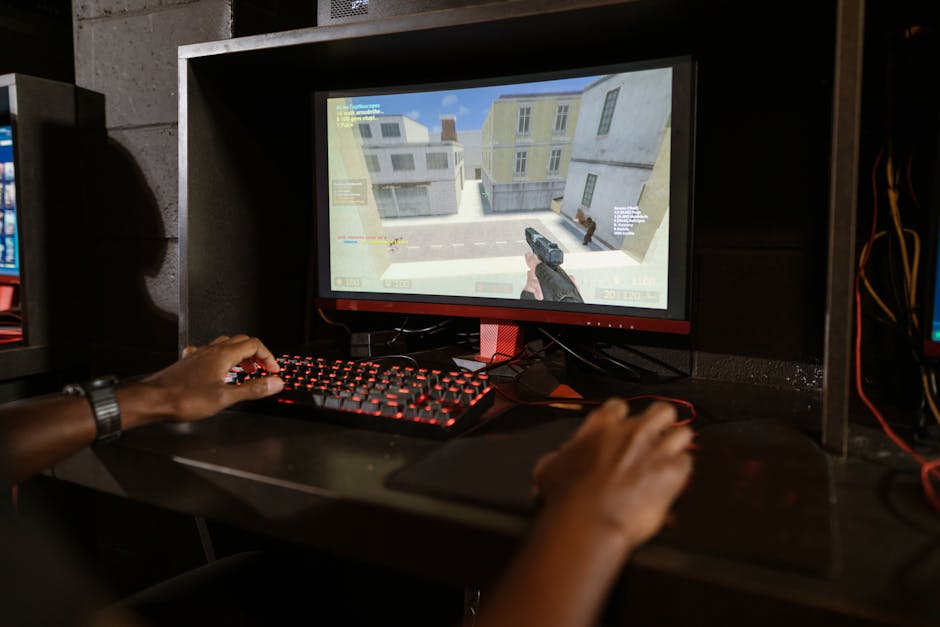
Photo by RDNE Stock project on Pexels
## Why FPS Optimization Matters
High FPS (frames per second) makes games feel smoother and more responsive. In competitive titles like *Valorant* or *Apex Legends*, even a 10 FPS increase can improve your aim and reaction time. For single-player games, steady 60 FPS avoids stuttering and screen tearing. The goal is balance: visual quality vs. performance.
### Key Performance Killers
- Shadows: High shadow resolution eats GPU power.
- Anti-Aliasing: Techniques like MSAA are resource-heavy.
- Ambient Occlusion: Adds depth but costs FPS.
- Volumetric Effects: Fog, smoke, and lighting are demanding.
## Step-by-Step Optimization Workflow
Follow this universal checklist before diving into game-specific settings:
1. Update GPU drivers (NVIDIA, AMD, or Intel) for the latest optimizations.
2. Set game to a lower preset (e.g., Low or Medium) as a starting point.
3. Disable V-Sync in-game; use NVIDIA Fast Sync or AMD Freesync if needed.
4. Turn off Motion Blur and Depth of Field—they blur visuals and waste FPS.
5. Reduce Shadow Quality to Low or Medium—this gives a 15-20% FPS boost.
6. Set Anti-Aliasing to FXAA or TAA (avoid MSAA or SSAA).
7. Lower Texture Quality only if VRAM is maxed out (check GPU memory usage).
8. Use Resolution Scale (e.g., 80%) instead of dropping native resolution.
## Game-Specific Settings for Maximum FPS
### Counter-Strike 2 (CS2)
*Counter-Strike 2* is CPU-bound but still benefits from GPU tweaks.
- Resolution: 1280×960 (4:3 stretched) for better visibility.
- Shadow Quality: Low (medium shadows are fine for competitive play).
- Model/Texture Detail: Low to reduce clutter.
- Multisampling Anti-Aliasing: 4x MSAA is enough; 8x eats FPS.
- HDR: Disabled for maximum brightness and clarity.
- FPS Boost: Use `-high` launch option in Steam properties.
### Elden Ring (PC)
This open-world RPG is notoriously unoptimized. Use these tweaks:
- Resolution: Native 1920×1080; avoid scaling down.
- Texture Quality: Medium (High stutters on 4GB VRAM cards).
- Anti-Aliasing: Off or Low (TAA causes blurriness).
- Motion Blur: Off (helps with camera smoothness).
- Grass Quality: Low (big FPS gain in grassy areas).
- Shadows: Medium (High drops FPS by 15%).
- Use Special K mod to unlock FPS and reduce stuttering.
### Apex Legends
A competitive battle royale where every frame counts.
- Display Mode: Fullscreen (borderless windowed costs 5-10 FPS).
- Model Detail: Medium (Low looks too blocky for spotting enemies).
- Texture Streaming Budget: Low or Medium (depends on VRAM).
- Ambient Occlusion: Off (negligible visual impact in fights).
- Spot Shadow Detail: Low (shadows on enemies are still visible).
- Volumetric Lighting: Off (heavy FPS drain).
- FPS Cap: Set to your monitor’s refresh rate (e.g., 144 FPS).
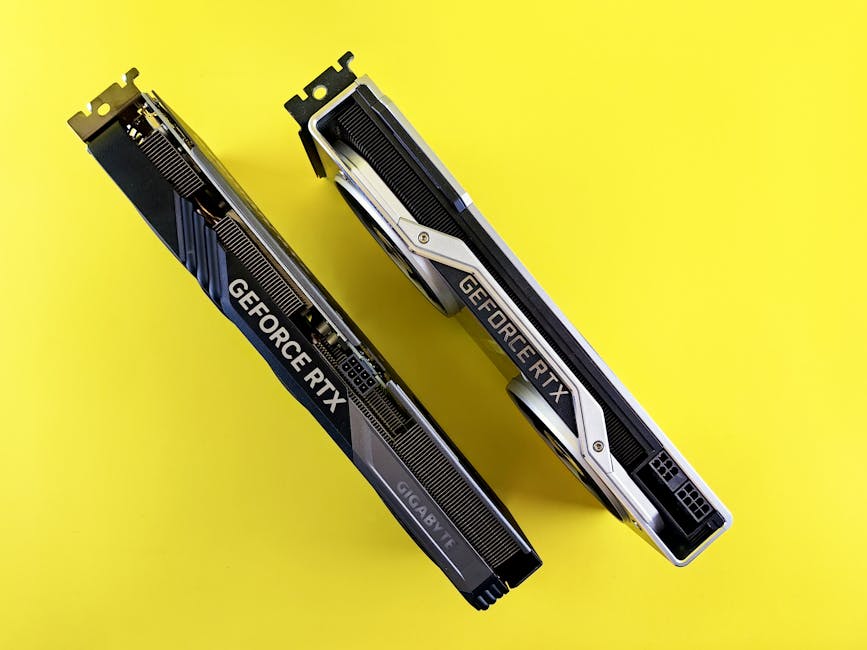
Photo by Andrey Matveev on Pexels
### Red Dead Redemption 2
A visually stunning game that can be optimized for 60 FPS on mid-range GPUs.
- Resolution: 1920×1080 (1440p if you have 8GB+ VRAM).
- Texture Quality: Ultra (uses VRAM but looks great; lower if stuttering).
- Shadows: Medium (High and Ultra are huge FPS killers).
- Lighting Quality: Medium (High adds minor reflections).
- Volumetrics: Low (fog and smoke are resource-heavy).
- Reflection Quality: Low (mirrors and water reflections are optional).
- TAA: Medium (Low causes shimmer; High blurs too much).
### Fortnite (Performance Mode)
Fortnite’s Performance Mode is built for high FPS.
- 3D Resolution: 100% (lower to 75% for extreme boost).
- View Distance: Epic (to see enemies far away).
- Shadows: Off (completely disabled in Performance Mode).
- Anti-Aliasing: Off (use TAA only if you see jaggies).
- Textures: Low (textures are still decent).
- Effects: Low (explosions and smoke are minimal).
## Comparison Table: Settings Impact on FPS
| Setting | Low Quality | High Quality | FPS Impact (Approx.) |
|---|---|---|---|
| Shadows | Low | Ultra | -20% to -30% |
| Anti-Aliasing | Off | MSAA 8x | -15% to -25% |
| Textures | Low | Ultra | -5% to -10% (VRAM dependent) |
| Ambient Occlusion | Off | HBAO+ | -10% to -15% |
| Volumetric Effects | Low | Ultra | -20% to -35% |
| Resolution Scale | 75% | 100% | -25% to -40% |
Pro tip: Always prioritize lowering Volumetrics and Shadows first—they give the biggest FPS gains with minimal visual loss.
## Advanced Tweaks for Extra FPS
If the above settings aren’t enough, try these:
- Disable Fullscreen Optimizations (Windows 10/11): Right-click game .exe > Properties > Compatibility > check “Disable fullscreen optimizations.”
- Use NVIDIA DLSS or AMD FSR (if supported): Upscales resolution with minimal quality loss (e.g., *Cyberpunk 2077*, *Call of Duty*).
- Set Power Plan to High Performance: Windows Settings > System > Power & Sleep > Additional power settings.
- Reduce Resolution: Dropping from 1080p to 900p gives a 20-30% FPS boost with slight blur.
- Close Background Apps: Discord, Chrome, and overlays (like Steam overlay) consume CPU/RAM.
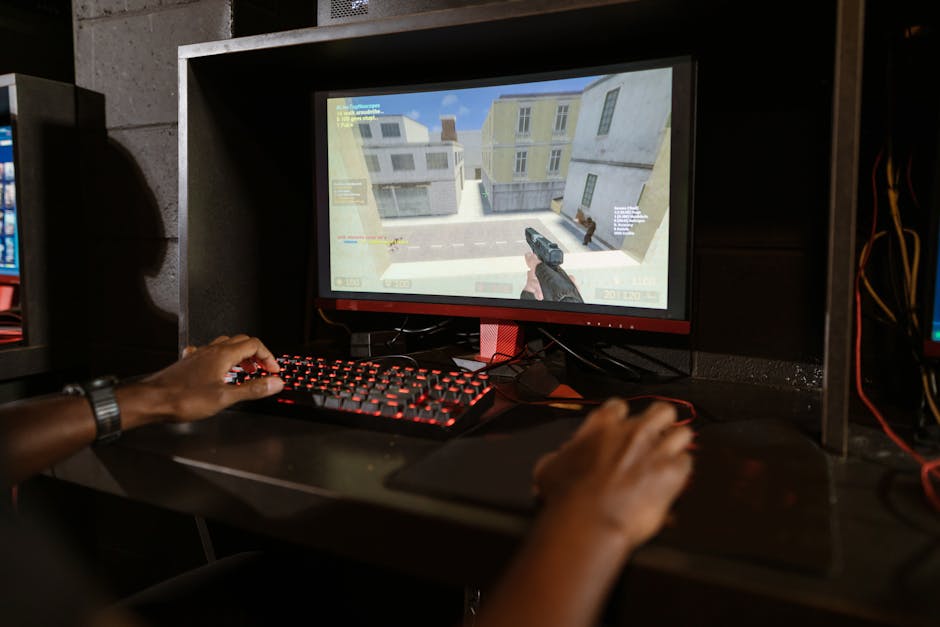
Photo by RDNE Stock project on Pexels
## Common Mistakes to Avoid
- Turning everything to Low: Some settings (like textures) look terrible on Low but don’t save much FPS.
- Ignoring Resolution Scale: It’s better than lowering native resolution because it keeps UI sharp.
- Using V-Sync without G-Sync/Freesync: Causes input lag and caps FPS to monitor refresh rate.
- Not updating drivers: Game-ready drivers often include specific optimizations for new titles.
## Conclusion & Next Steps
Optimizing graphics settings is the fastest way to boost FPS in any Steam game. Start with the universal checklist, then apply game-specific tweaks from this guide. Remember: lower shadows, disable motion blur, and use resolution scale for immediate gains. For more detailed walkthroughs and performance guides, visit gamerguide.tech—your hub for Steam game reviews, settings optimizations, and walkthroughs. Bookmark our site and check back weekly for new content on maximizing your gaming experience. Happy fragging!