Steam Deck Tips and Tricks Every Owner Should Know
The Steam Deck is a powerful handheld gaming PC, but unlocking its full potential requires more than just turning it on. From boosting battery life to running non-Steam games, these essential tips and tricks will transform your experience. Optimize performance, extend playtime, and master Desktop Mode with this practical guide—no fluff, just actionable steps for every owner.
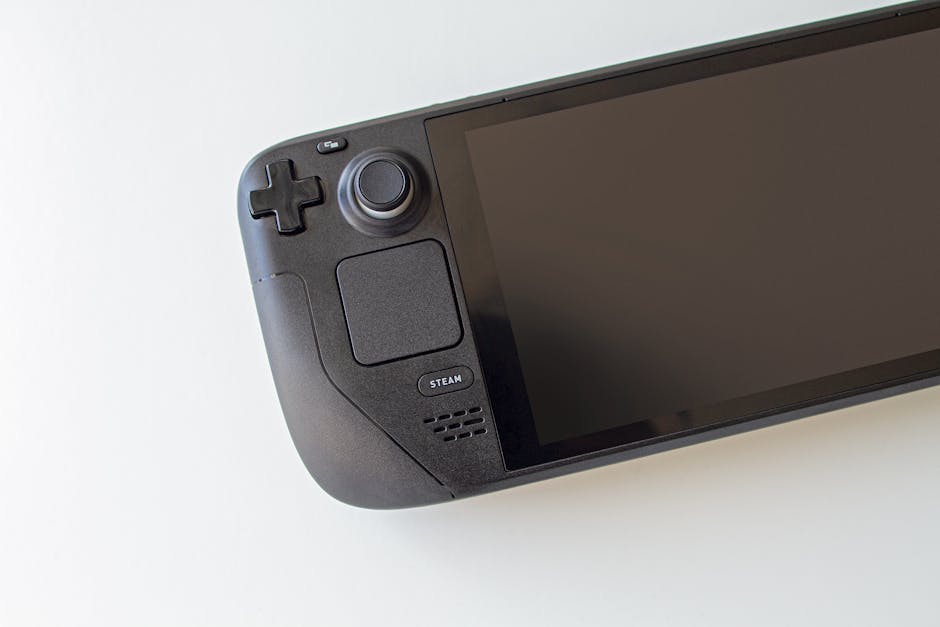
*Photo by Edgar Almeida on Pexels*
## 1. Extend Battery Life Instantly
Battery drain is the top complaint. Use these settings to get hours more playtime:
- Limit FPS to 30 or 40: Go to Quick Access Menu > Performance > Frame Rate Limit. 40 FPS saves ~20% battery vs 60 FPS.
- Lower TDP (Thermal Design Power): In the same menu, set TDP to 8-10W for less demanding games.
- Reduce Brightness: Keep brightness at 50% or lower indoors.
- Enable Half Rate Shading: This renders at half resolution, boosting battery by 15-20% with minimal visual impact.
Pro tip: Disable Wi-Fi and Bluetooth when offline to save an extra 5-10% battery.
## 2. Master Desktop Mode for Full PC Access
Desktop Mode turns your Deck into a Linux PC. Access it by pressing the Steam button > Power > Switch to Desktop Mode. Here’s what you can do:
- Install Chrome, Discord, or Spotify via the Discover Store.
- Connect a mouse and keyboard via USB-C or Bluetooth for easier navigation.
- Download non-Steam games (Epic Games, GOG) using Heroic Games Launcher.
Action: Pin your most-used apps to the taskbar for quick access when switching modes.
*Photo by Edgar Almeida on Pexels*
## 3. Optimize Storage with MicroSD Cards and Internal Management
The Steam Deck’s internal storage fills up fast. Follow these storage tips:
- Use a high-speed MicroSD card: Samsung EVO Select or SanDisk Extreme (A2 rated) for best load times.
- Move games between drives: In Steam > Settings > Storage, select a game and choose “Move.”
- Delete shader cache: Go to Steam > Settings > Downloads > Clear Shader Cache to free 1-5GB.
Comparison Table: Storage Options
| Storage Type | Capacity | Speed (Read/Write) | Best For |
|---|---|---|---|
| 64GB eMMC | 64GB | ~300 MB/s | Light indie games |
| 256GB NVMe | 256GB | ~2,000 MB/s | Mid-size AAA titles |
| 512GB NVMe | 512GB | ~2,500 MB/s | Large open-world games |
| 1TB MicroSD (A2) | 1TB | ~160 MB/s | Budget expansion (slower) |
Pro tip: Always install your most-played games on internal NVMe for faster loading.
## 4. Run Non-Steam Games and Emulators
The Deck isn’t limited to Steam. Here’s how to expand your library:
- Epic Games Store: Install Heroic Games Launcher from Discover Store in Desktop Mode.
- Game Pass (Cloud): Use Microsoft Edge browser to stream Game Pass titles.
- Emulators: Install EmuDeck for PS2, GameCube, and Nintendo Switch games.
Action: For emulators, map controls in Steam Input for seamless gameplay.
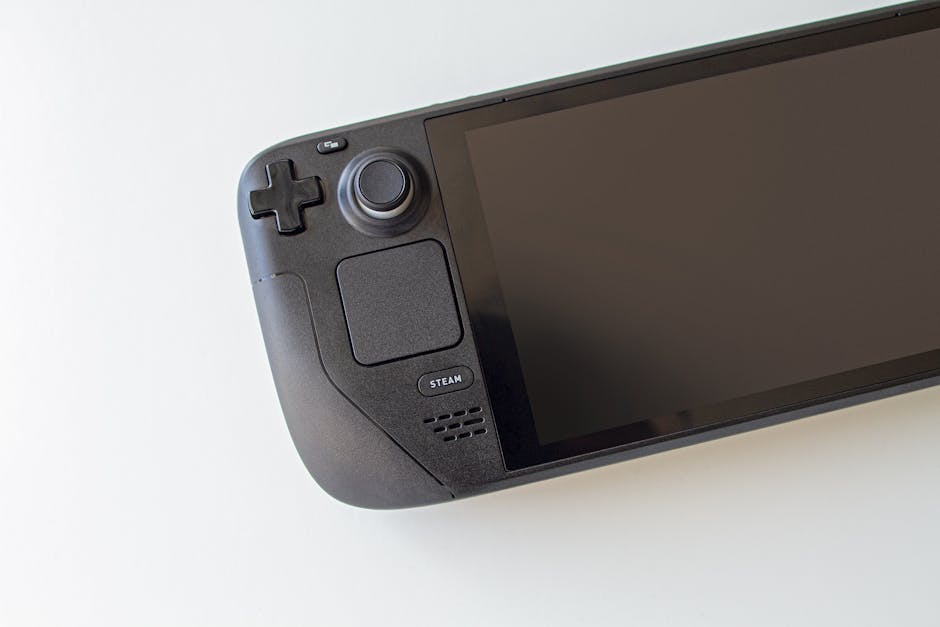
*Photo by Edgar Almeida on Pexels*
## 5. Customize Controls for Any Game
Steam Input is incredibly flexible. Use these tips:
- Create custom layouts: In Steam > Controller Settings, adjust gyro, back paddles, and touchpads.
- Enable gyro aiming: Set gyro to “Activate on Touch” for precise aiming in shooters like *Doom Eternal*.
- Use radial menus: Assign touchpad clicks to quick-access items (e.g., health potions).
Pro tip: Download community layouts from the Steam Controller Configurator for instant optimization.
## 6. Troubleshoot Common Issues Fast
Encounter problems? Fix them quickly:
- Game won’t launch: Verify files in Steam > Properties > Local Files > Verify Integrity.
- Overheating: Clean the fan vents with compressed air and lower TDP to 10W.
- Steam OS freeze: Hold the power button for 10 seconds to force shutdown, then reboot.
Action: Keep the Deck updated via Settings > System > Check for Updates to avoid bugs.
## 7. Boost Performance with Developer Settings
Access hidden performance tweaks:
- Enable Developer Mode: Go to Settings > System > Enable Developer Mode.
- Disable SMT (Simultaneous Multithreading): In Developer Settings, toggle “Disable SMT” for CPU-heavy games (e.g., *Cyberpunk 2077*).
- Use Performance Overlay: In Quick Access Menu, set overlay to “Detailed” to monitor temps and FPS.
Warning: Disabling SMT can reduce battery life—use only for demanding titles.
## 8. Accessories That Actually Matter
Invest in these accessories for a better experience:
- JSAUX Dock: Adds HDMI, USB, and Ethernet ports for TV gaming.
- Power Bank: 20,000mAh+ with 45W PD output (e.g., Anker PowerCore).
- Screen Protector: Matte anti-glare for outdoor play.
Pro tip: Use a USB-C hub with pass-through charging to game while plugged in without cable strain.
## Conclusion
The Steam Deck is a versatile powerhouse, but these tips—from battery optimization and Desktop Mode to storage management and custom controls—make it truly yours. Start with one tweak today, like limiting FPS to 40, and see immediate benefits. For more in-depth guides, reviews, and walkthroughs, visit gamerguide.tech and level up your gaming setup. Ready to master your Deck? Dive into our full library now!